
Settings and reference / USER GUIDE
Keyboard shortcut reference
Check and change key bindings
In Preferences → Key Config, search by action name, condition, or binding. Click a binding to change it; + adds an alternative. An action showing Add has no binding. Changes are saved per action.
Use Reset to Default, Remove, or Cancel in the binding dialog. Fixed actions cannot be changed. Ordinary left-click and bindings that conflict with actions used at the same time cannot be assigned. If another action already uses the input you want, review that binding first.
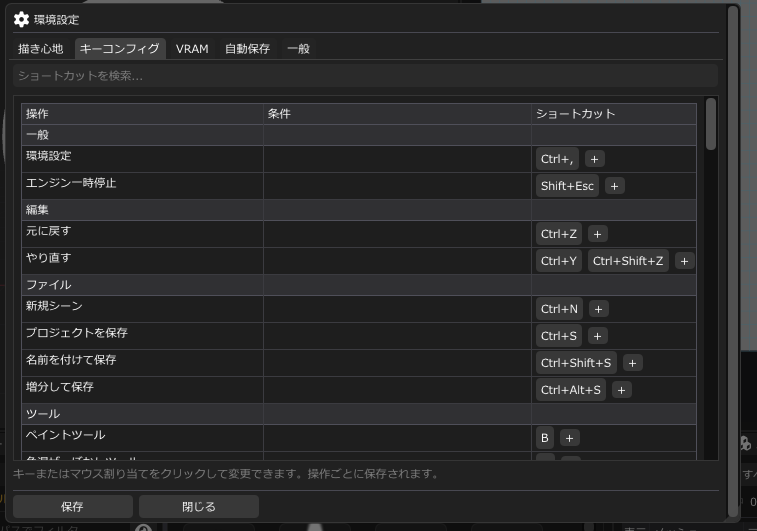
The tables show the initial bindings and fixed gestures from Ver.0.1.1, with the layer gestures added in Ver.0.1.2. If you have saved settings, use the bindings shown in Key Config. Tool keyboard shortcuts are unavailable during text entry, while Preferences is open, or while the pie menu is open.
In Ver.0.1.1, use the listed default gestures for window focus and Toggle Corner / Smooth. Changes made in Key Config may not take effect for these actions.
Actions and keys or gestures
General
| Action | Key or mouse gesture and context |
|---|---|
| Preferences | Ctrl+, |
| Pause Engine | Shift+Esc |
Editing
| Action | Key or mouse gesture and context |
|---|---|
| Undo | Ctrl+Z |
| Redo | Ctrl+Y / Ctrl+Shift+Z |
Files
| Action | Key or mouse gesture and context |
|---|---|
| New Scene | Ctrl+N |
| Save Project | Ctrl+S |
| Save Project As | Ctrl+Shift+S |
| Incremental Save | Ctrl+Alt+S |
Tools
| Action | Key or mouse gesture and context |
|---|---|
| Paint Tool | B |
| Color Blending Tool | U |
| Path Tool | P |
| Select Tool | V |
| Text Tool | T |
Painting
Use these with brush-based tools such as Paint and Color Blending. Keys 1, 2, and 3 switch the Paint fill mode; E toggles the eraser on or off. Enabling it uses the brush-shaped eraser.
| Action | Key or mouse gesture and context |
|---|---|
| Brush Fill Mode | 1 |
| Polygon Fill Mode | 2 |
| UV Shell Fill Mode | 3 |
| Toggle Eraser | E |
| Smaller Brush | [ |
| Larger Brush | ] |
| Toggle Symmetry | M |
| Symmetry X Axis | Shift+X When symmetry is enabled |
| Symmetry Y Axis | Shift+Y When symmetry is enabled |
| Symmetry Z Axis | Shift+Z When symmetry is enabled |
| Toggle Pseudo Quad | Q |
| Eyedropper | Ctrl+Shift+left drag On the model in the 3D viewport. Release the left button while holding Ctrl and Shift to apply; releasing the modifiers first cancels |
| Adjust Brush Size (drag) | Ctrl+Alt+left drag / Ctrl+Alt+right drag Drag horizontally |
Palette
| Action | Key or mouse gesture and context |
|---|---|
| Swap Foreground / Background | X |
| Toggle Transparent Color | C |
| Reset Color Slots | D |
| Mixer Eyedropper | Alt+left drag On the mixer canvas. Release the left button while holding Alt to apply; releasing Alt first cancels |
Stamps
| Action | Key or mouse gesture and context |
|---|---|
| Resize Stamp (drag) | Ctrl+Alt+left drag / Ctrl+Alt+right drag Text, shape, and image stamps Drag horizontally in the 3D viewport |
| Rotate Stamp (drag) | Shift+Space+left drag / Shift+Space+right drag Text, shape, and image stamps Drag horizontally in the 3D viewport |
| Reset Stamp Rotation | Shift+Space+left double-click / Shift+Space+right double-click Text, shape, and image stamps |
Display
| Action | Key or mouse gesture and context |
|---|---|
| Toggle Wireframe | I |
| Toggle Floor Grid | G |
| Save Viewport Screenshot | F12 |
| Toggle UV Editor | Shift+P |
| Open Texture Set Under Cursor | Shift+Alt+right click Click the model |
3D viewport
| Action | Key or mouse gesture and context |
|---|---|
| Orbit Camera | Alt+left drag |
| Pan Camera | middle drag / Space+left drag Unavailable in Pivot 360 mode |
| Zoom Camera (drag) | Alt+right drag / Ctrl+left drag Drag right or up to zoom in |
| Zoom Camera (wheel) | Mouse wheel |
Paths
C and F apply with the viewport hovered while drafting a path. Delete or Backspace removes the last draft anchor. When editing an existing path, it deletes the selected anchor.
Esc cancels an unfinished draft. When re-editing an existing path in the 3D viewport, it exits editing and keeps the changes.
Close Path is initially registered to C, which is also used by Toggle Transparent Color. Loading saved settings can leave Close Path unassigned. If the action shows Add, assign an input that does not conflict with another action.
| Action | Key or mouse gesture and context |
|---|---|
| Finish Open Path | Enter While drafting; or while re-editing a path in the 3D viewport |
| Cancel Path | Esc While drafting; or while re-editing a path in the 3D viewport |
| Remove Last Anchor | Delete / Backspace While drafting |
| Close Path | Check Key Config (initial registration: C) While drafting over the 3D viewport |
| Close Path and Fill | F While drafting over the 3D viewport |
| Delete Selected Anchor | Delete / Backspace Anchor selected in the 3D viewport or UV Editor |
| Toggle Corner / Smooth | left double-click On an anchor of an existing path opened for editing in the 3D viewport |
Selection
| Action | Key or mouse gesture and context |
|---|---|
| Clear Mesh Selection | Esc Select tool active, pointer over the 3D viewport |
| Add to / Remove from Selection | Shift+left click With Select active, Shift-click toggles a part. Shift-drag from empty space adds parts |
| Add to / Remove from Selection (part list) | Shift+left click |
Layers
| Action | Key or mouse gesture and context |
|---|---|
| Copy Selected Layer | Ctrl+C Layers panel focused |
| Cut Selected Layer | Ctrl+X Layers panel focused |
| Paste Layer | Ctrl+V Layers panel focused |
| Duplicate Selected Layer | Ctrl+D Layers panel focused |
| Delete Selected Layer | Delete Layers panel focused |
| Turn Layer Mask On / Off | Shift+left click On the mask thumbnail |
| Open / Close Folder | left double-click On a folder row |
| Select a layer with the pie menu (Ver.0.1.2) | Hold the right button, slide into Layers, and release over a card in the thumbnail list 3D viewport / UV Editor |
| Toggle a layer setting with the pie menu (Ver.0.1.2) | Slide onto a setting beside the card and release the right button there Only the setting released over changes |
| Browse and select layers with a pen (Ver.0.1.2) | Place the pointer at the top/bottom to scroll; return to the center to stop. Tap a card with the pen tip to select |
UV Editor
| Action | Key or mouse gesture and context |
|---|---|
| Adjust Brush Size (drag) | Ctrl+Alt+left drag / Ctrl+Alt+right drag Use a brush tool and a paintable target; drag horizontally |
| Zoom Canvas (drag) | Ctrl+left drag Drag right or up to zoom in |
| Zoom Canvas | Mouse wheel |
| Pan Canvas | middle drag / Space+left drag |
| Rotate Canvas | Shift+Space+left drag / Shift+Space+right drag Drag horizontally |
| Reset Canvas Rotation | Shift+Space+left double-click / Shift+Space+right double-click |
| Insert Anchor on Segment | left double-click On a path segment |
Interface
| Action | Key or mouse gesture and context |
|---|---|
| Focus Next Window | Ctrl+Tab |
| Focus Previous Window | Ctrl+Shift+Tab |
| Use the Current Tool | Left-click / pen |
| Toolbar Pie Menu | Hold the right mouse button, slide, then release to select. Esc cancels. Available in the 3D viewport / UV canvas; assigned right-button gestures take priority |
| Focus Next Widget | Tab |
| Focus Previous Widget | Shift+Tab |
| Clear Focus / Close Popup | Esc |
| Command Palette | Click the title-bar search box |
| Run Highlighted Command | Enter Command palette open |
| Close Command Palette | Esc Command palette open |
| View Along an Axis | Click the axis gizmo 3D viewport |
| Item Menu | Right-click Presets, swatches, and the tool rail |
| Open Item | Double-click Files, folders, and presets in panels |
| Dock / Undock Panel | Drag the panel title bar |
| Switch Dock Tab | Click a dock tab |
Panel actions
| Action | Key or mouse gesture and context |
|---|---|
| Rename a layer, asset, or user material preset | Select the item, focus its panel, and press F2. Renaming a project asset also renames the file. |
| Delete a project asset | Delete while the Asset Browser has focus. Moves the item to the Windows Recycle Bin; scene Undo does not restore it |
For operation-specific requirements, see the pie menu, paths, UV Editor, layers, layer pie menu, and Asset Browser.