
Getting started / USER GUIDE
Workspace and mesh parts
Workspace layout
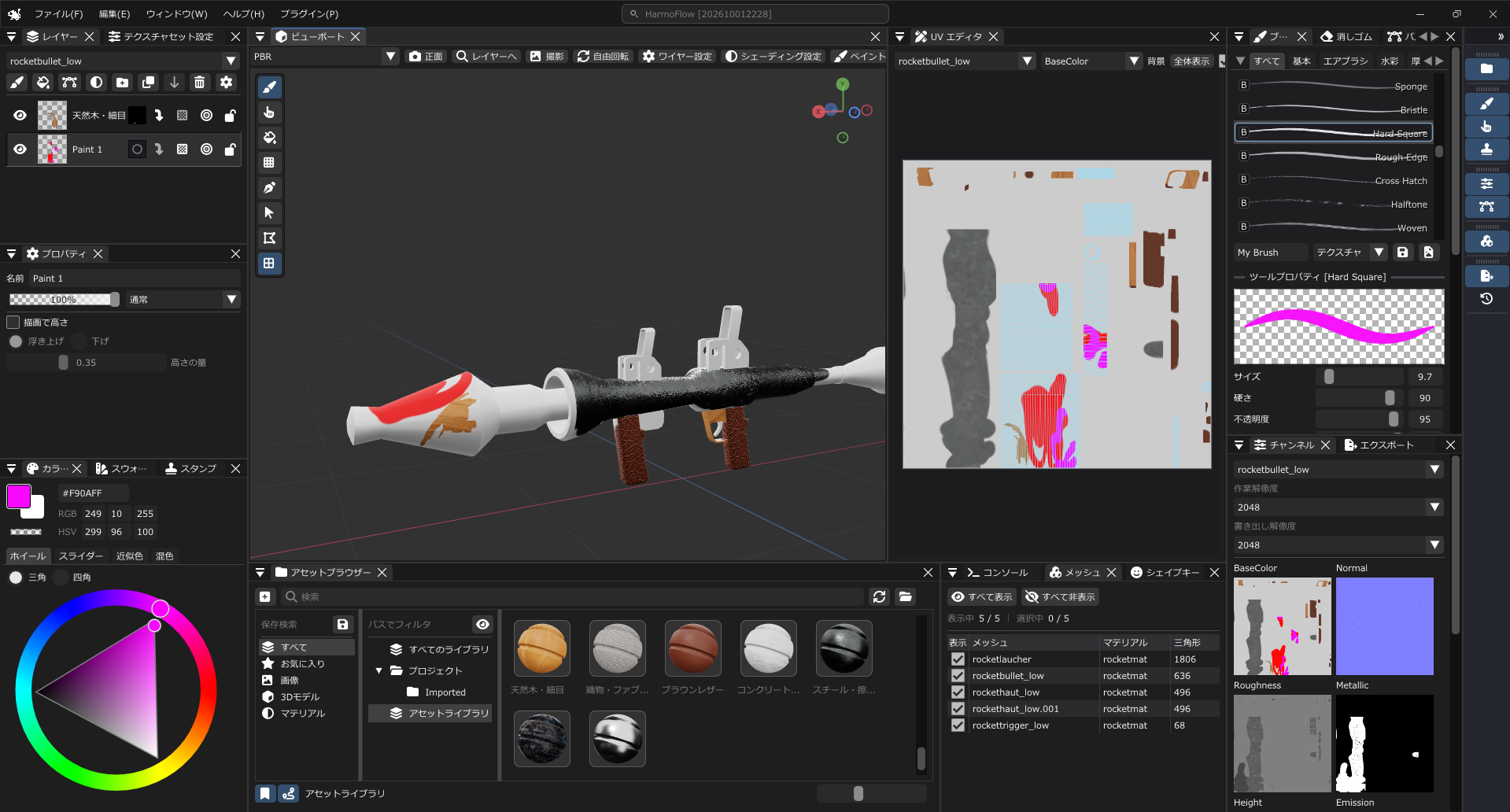
Find commands
Use the search box at the top of the window to find commands such as saving, importing, opening Preferences, and toggling panels. Click a result to run it, or press Enter to run the first result. Press Esc or click outside to close the results. If the search box is hidden, widen the window. To find assets, use the search box inside the Asset Browser.
Switch tools and layers with the pie menu
Since Ver.0.1.1, you can open a pie menu around the cursor in the 3D viewport or UV canvas.
- Press the right mouse button over the 3D viewport or UV canvas.
- Keep the button held and slide toward the item you want.
- Release the right button to select it. Press Esc to cancel. Releasing without sliding also closes the menu without selecting anything.
Switch between tools such as brush painting, color blending, and UV shell fill close to where you work. Existing right-button bindings, such as camera controls and brush-size adjustments, take priority when their key combinations are held. See the shortcut reference for keyboard and mouse controls.
The pie-menu trigger is a fixed gesture. If it does not open, release modifier keys such as Ctrl, Shift, or Alt and finish drawing or text entry before trying again.
In Ver.0.1.2, keep the right button held and slide into Layers to open the thumbnail list. Release over a card to select that layer, or use the controls beside it to change visibility, locking, and other settings. See layer selection and settings.
Texture sets and mesh parts
In HarmoFlow, each mesh part has its own texture set. Parts that use the same material are still treated as separate texture sets.
Ordinary brushes and stamps paint within the texture set of the selected existing layer. To paint another part, switch sets in the list at the top of the Layers panel or Shift+Alt+right-click the model. When you start a new painted material from the Asset Browser, it is recorded in the currently selected texture set. Painting on an existing layer targets the set that owns that layer. Parts using the same material can share their final texture, so overlapping UVs can show changes on another part.
What each panel does
These are the panel names in the Window menu. Follow a name to its related instructions.
| Panel | What it does |
|---|---|
| Viewport | Inspect and paint the model in 3D, control the camera, and switch between PBR and NPR. |
| Layers | Organize layers and folders, and adjust masks, visibility, opacity, and blending. |
| Texture Set Settings | Inspect channels and mesh maps for the selected set, enlarge previews, and rebake maps. |
| Properties | Edit the settings available for the selected layer type. |
| Brush | Choose brush presets and adjust size, flow, spacing, and other brush settings. |
| Stamp | Configure image, text, shape, and clone stamps. |
| Eraser | Adjust the eraser's size and behavior. |
| Color blending | Choose a blending or blur brush and adjust its mixing or blur strength. |
| Color Palette | Choose and mix colors for painting. |
| Swatches | Save frequently used colors and select them again. |
| Asset Browser | Find, filter, and import assets from the project and library. |
| Meshes | Select mesh parts, toggle their visibility, and inspect material names and triangle counts. |
| Shape Keys | Filter imported shape keys and adjust their weights to preview deformation. |
| Channels | Select the texture set and resolutions, inspect six channels, and bind texture images. |
| Paths | Set path fill and outline styles, and edit paths. |
| UV Editor | Paint and edit paths in UV space, and inspect textures, mesh maps, and UV wires. |
| Export | Set the output location, format, and channels, then export textures. |
| Scripting (Lua) | Run Lua code or files and inspect their logs. |
| Plugins | Inspect installed plugins and add or manage them. |
| History | Inspect the edit history and select rows to move through Undo and Redo states. |
| Console | Inspect processing results and errors from the current session, and copy the log. |
| FPS / Frame time | Inspect FPS and frame times to compare responsiveness. |
| Panel Rail | Stow panels as icons, open or close them, and reorder or group them. |
Open panels and reset the layout
Reopen closed panels from the Window menu. Use Reset Layout to restore the arrangement. Hover over controls to see additional guidance.